> For the complete documentation index, see [llms.txt](https://docs.punch.win/llms.txt). Markdown versions of documentation pages are available by appending `.md` to page URLs; this page is available as [Markdown](https://docs.punch.win/getting-started/wallet-setup.md).
# Wallet Setup
A wallet is automatically created when you sign up with Google or Apple.
***
## Creating a Wallet
| Login Method | Provider | Description |
| ---------------- | -------------- | ------------------------------------------------------------------- |
| **Social Login** | Google / Apple | Sign up with a social account and a wallet is automatically created |
***
## How to Sign Up
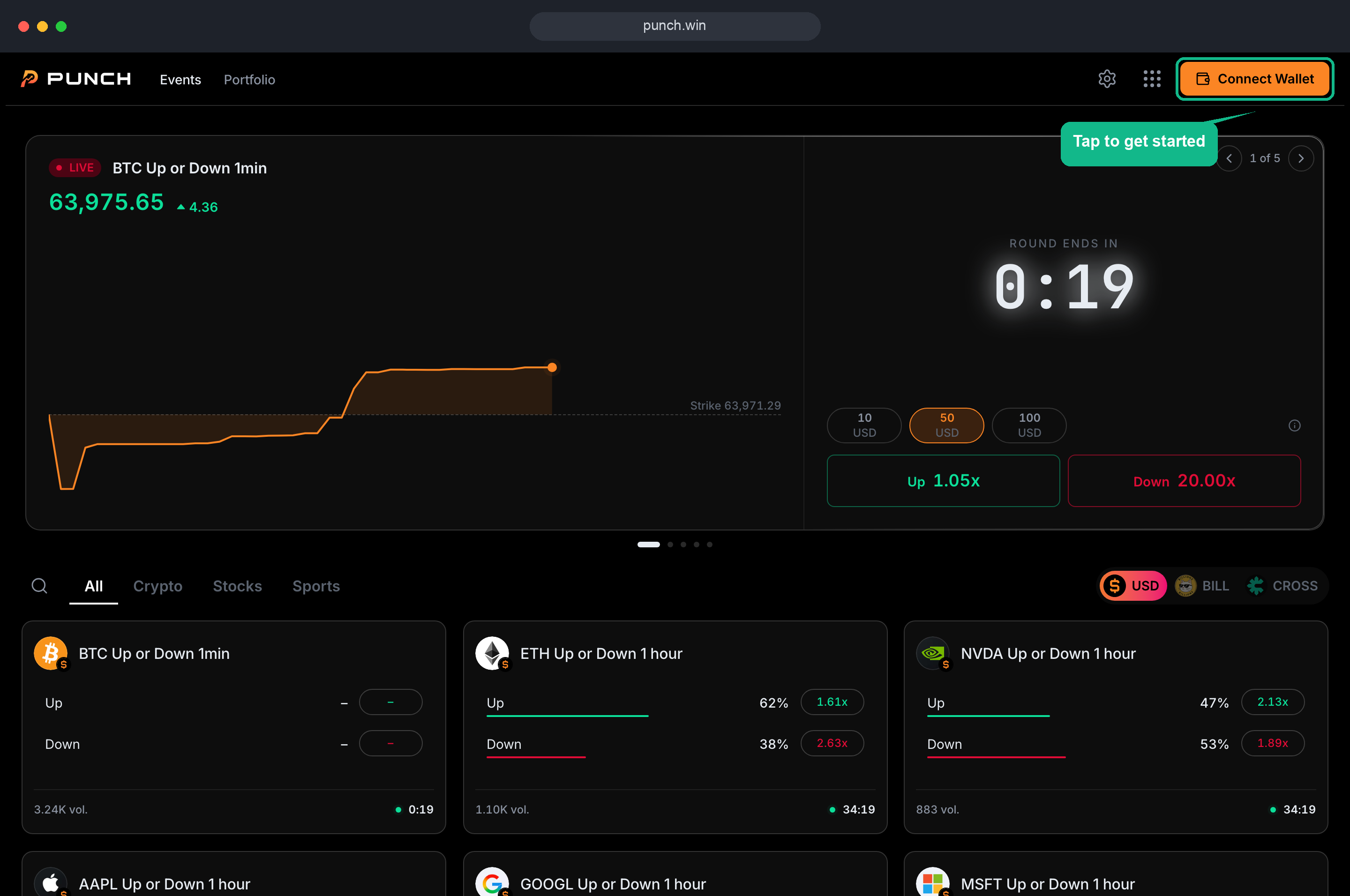
### 1. Click Connect Wallet
Click the **Connect Wallet** button.
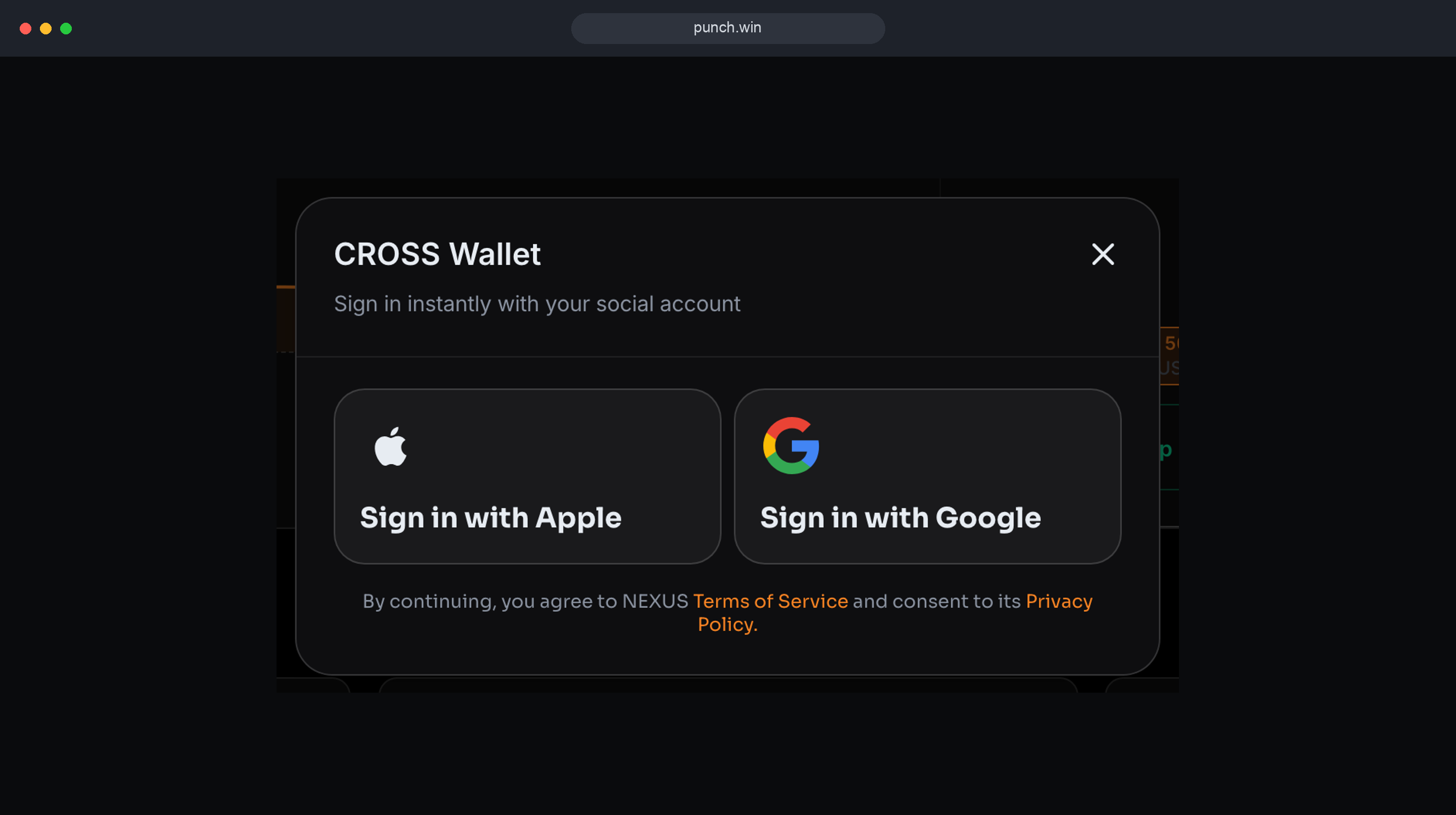
### 2. Sign In
Log in with a Google or Apple account, and a wallet is automatically created.
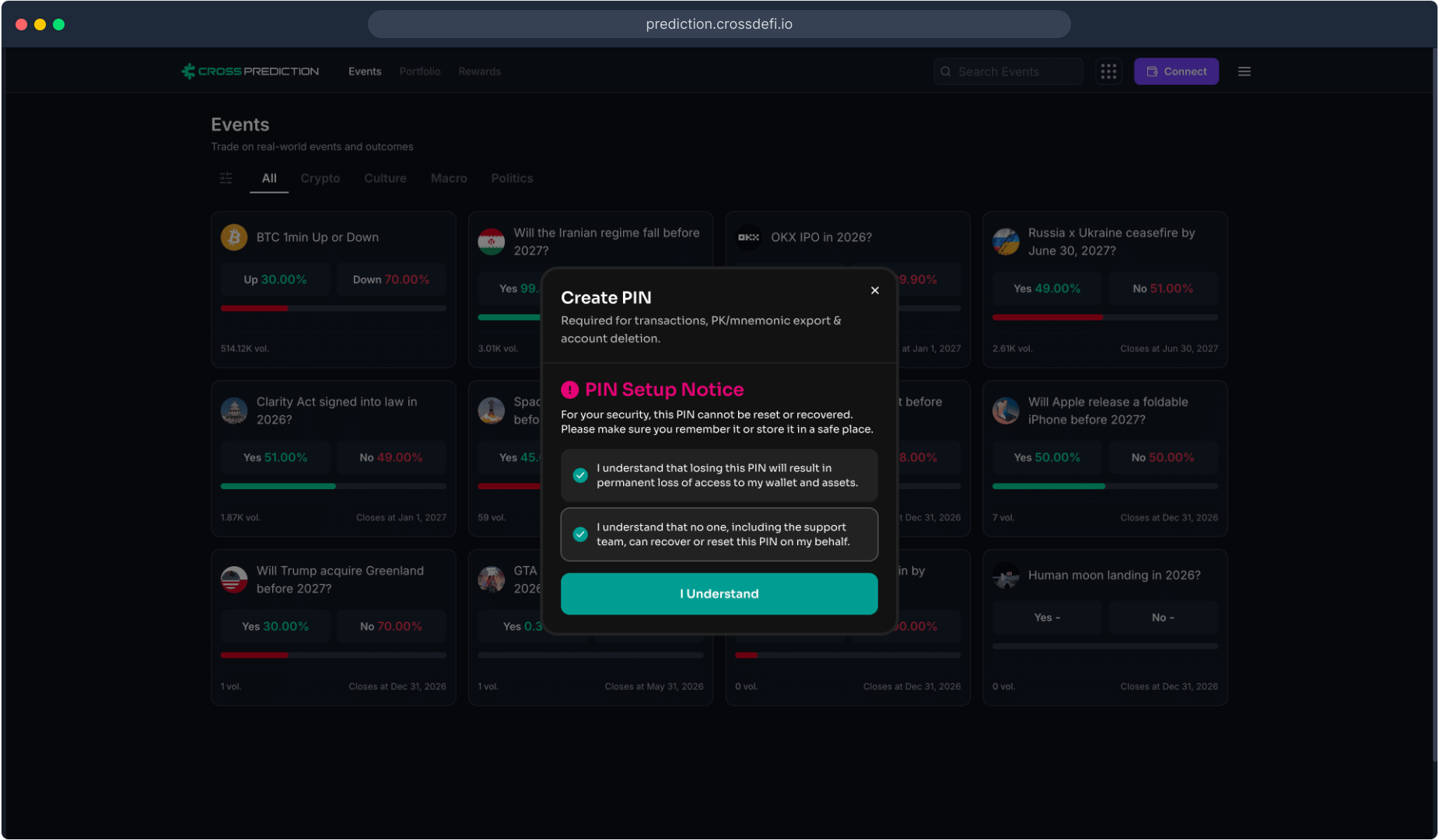
### 3. PIN Setup Notice
Review the PIN setup notice carefully. Your PIN is used to authorize all transactions and **cannot be recovered if lost**.
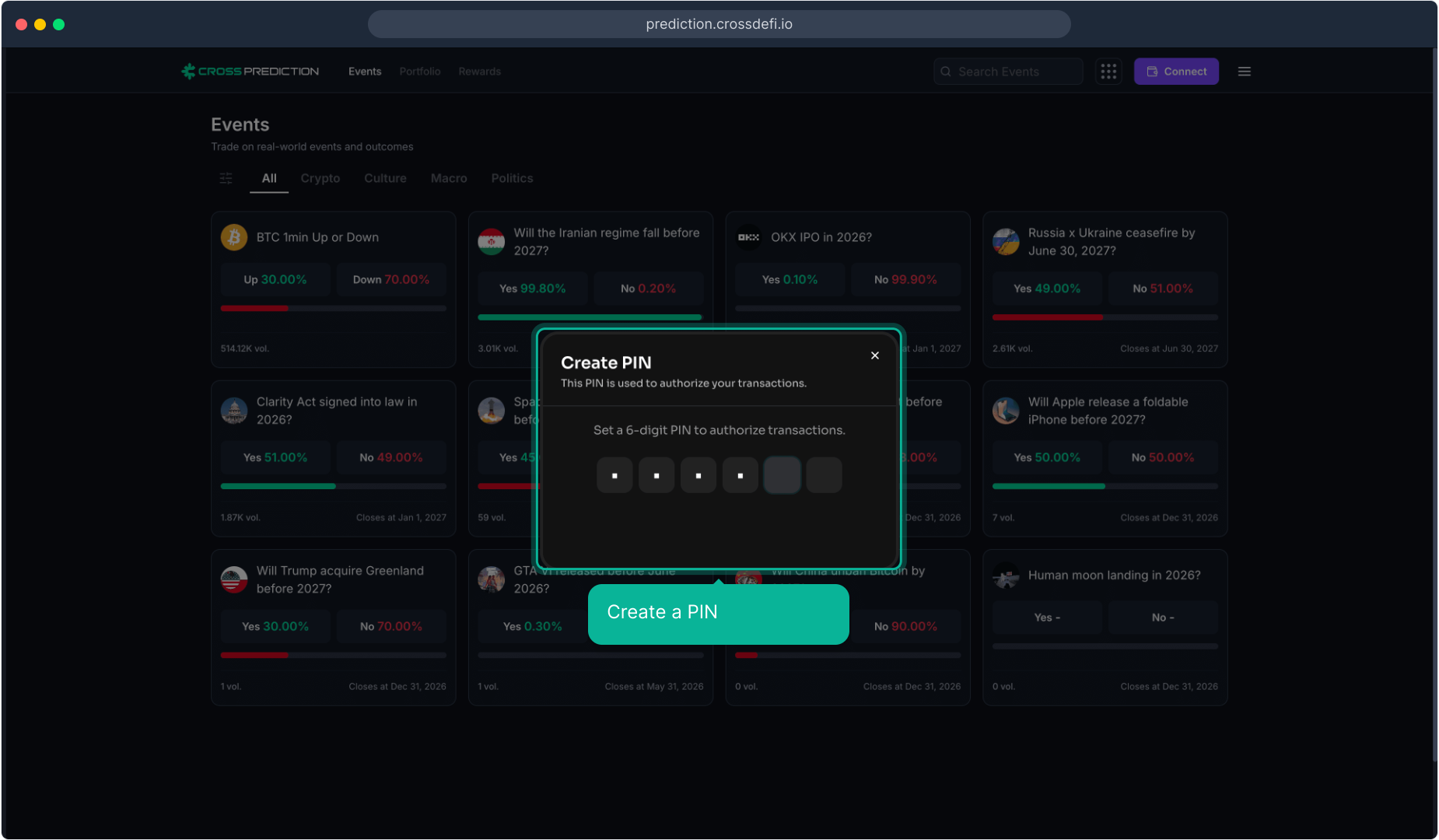
### 4. Create Your PIN
Set a **6-digit PIN** to secure your wallet. This PIN is required when approving transactions such as Buy, Sell, Split, Merge, and Redeem.
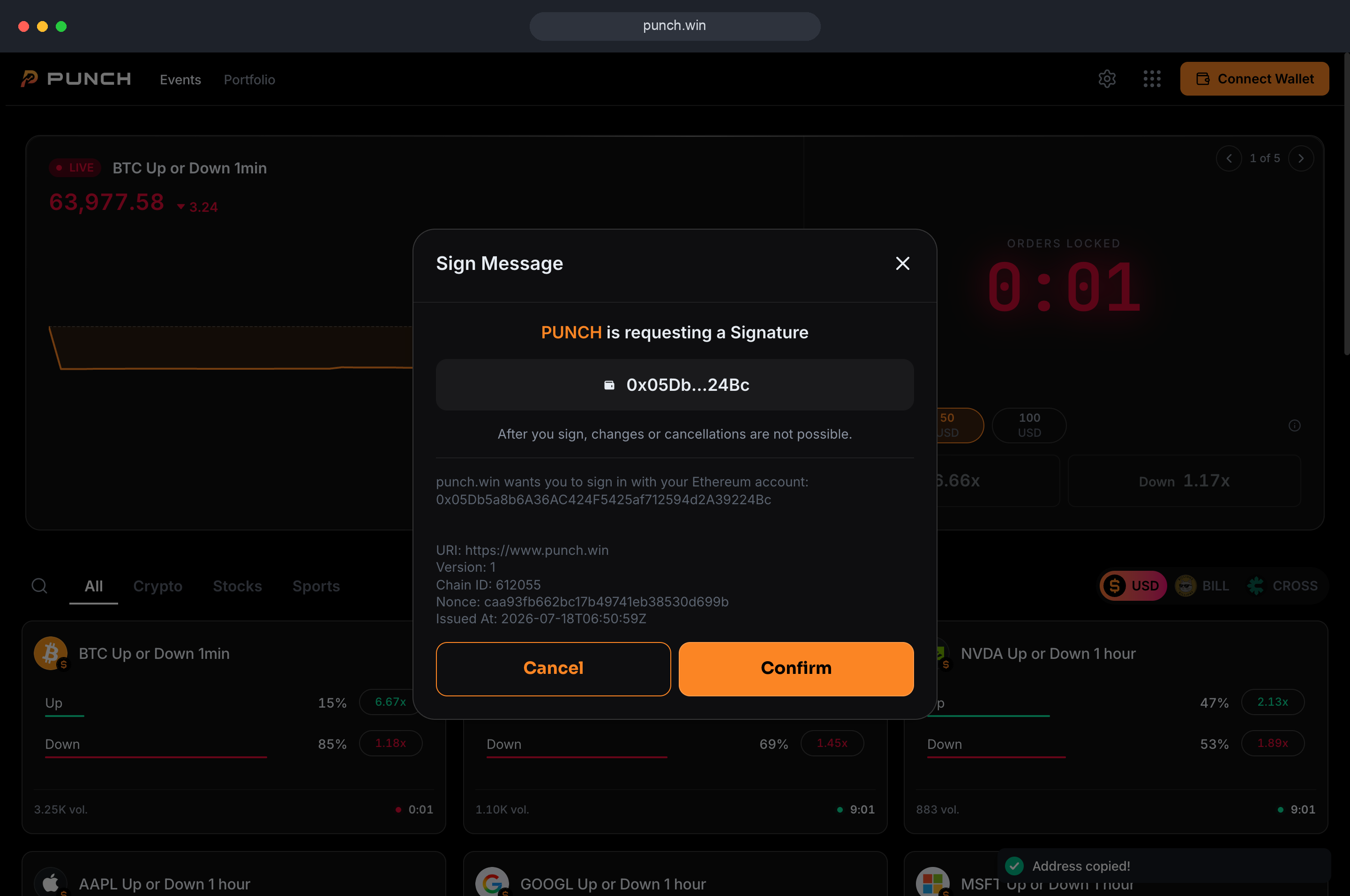
### 5. Confirm Signature
A signature request will appear to verify wallet ownership. Review the message and click **Confirm** to proceed. This does not cost any fees; it simply proves you control the wallet.
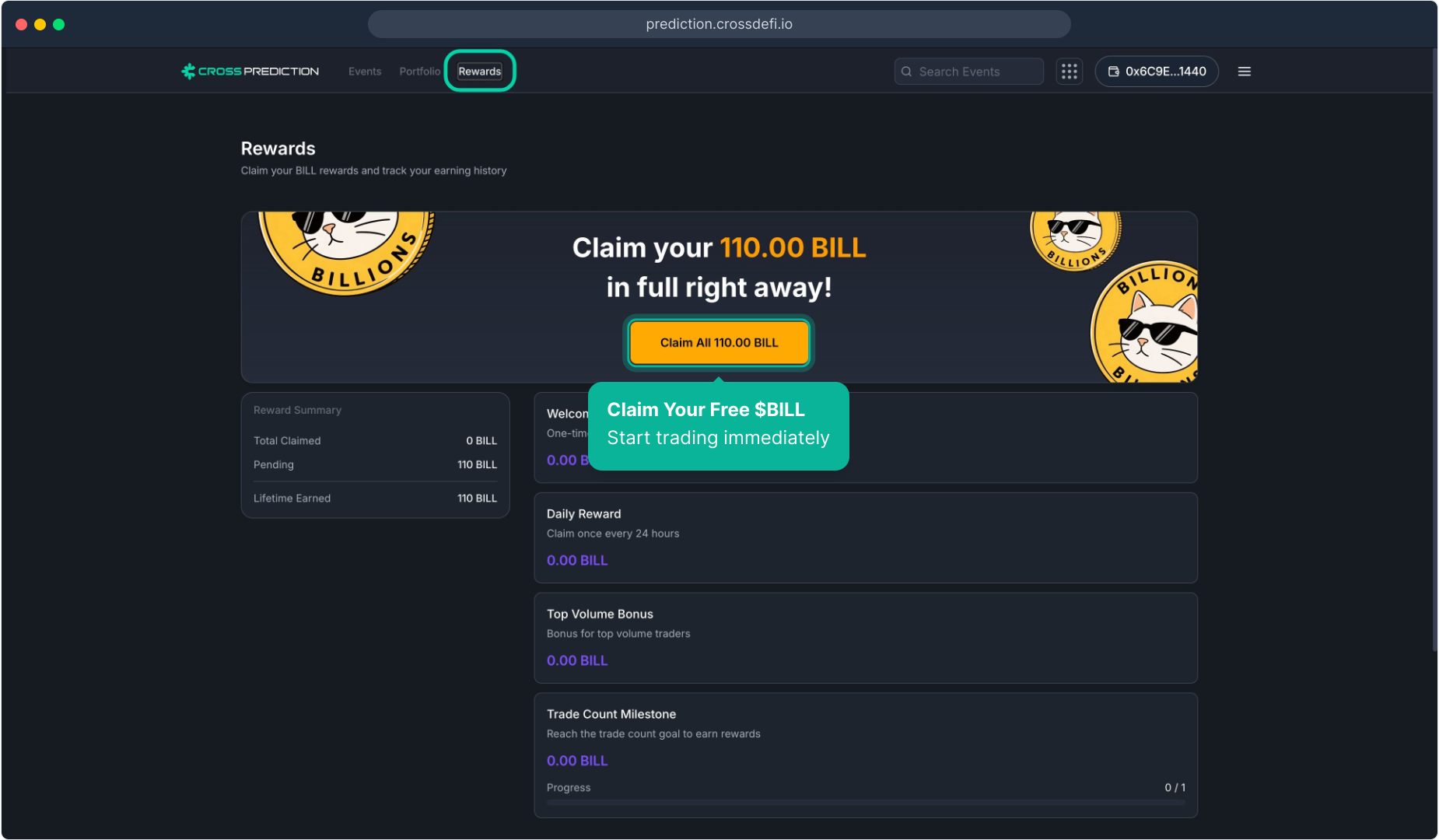
### 6. Claim Your Free POINT
Once connected, head to the **Rewards** page to claim your free POINT. Complete quests like the welcome bonus, daily check-in, and trade milestones to earn POINT, then use it to start trading at no cost.
{% hint style="info" %}
**Check your balance at a glance.** Hover over (desktop) or tap (mobile) the Equity panel on the Events page to expand your POINT and USD balances.
{% endhint %}
***
## Disconnecting the Wallet
The wallet can be disconnected via the wallet menu → **Disconnect**.
> **Note**: Browsing the market list and viewing prices is possible without a wallet connection. A wallet connection is only required when executing transactions (Buy/Sell/Split/Merge/Redeem).